5 Best AI Diagram Tools for Technical Teams in 2026
AI diagram tools promise the same thing — “describe it, get a diagram” — but they are solving three different jobs. Technical diagrams (architecture, sequence, entity-relationship) need precision and version control. Flowcharts and mind maps need to look good in a doc or a deck. Whiteboards need to capture a room full of ideas in real time. Buying the wrong type is the most common mistake: a beautiful AI-generated flowchart is useless in a design review, and a technical diagram tool is miserable for brainstorming.
We ranked five tools on export fidelity and the design-to-code/docs handoff — how well the output survives being embedded in documentation, reviewed by engineers, or turned into an implementation. Our top pick is Eraser — the only AI diagram tool built around how technical teams actually work.

The 5 best AI diagram tools at a glance
| Tool | Best For | Starting Price | Free Tier |
|---|---|---|---|
| Eraser | AI technical diagrams for engineers | Free; Starter $15/member/mo | Yes |
| Mermaid | Text-based diagrams in docs and git | Free; Pro $6.67/mo annual | Yes |
| Napkin AI | Text-to-flowchart for docs and decks | Free; Plus $9/person/mo | Yes |
| Whimsical | Fast manual flowcharts and mind maps | Free; Pro $10–12/editor/mo | Yes |
| Miro | Whiteboard sessions and workshops | Free; Starter $8/user/mo | Yes |
1. Eraser — best AI technical diagrams for engineers
Best for: engineering teams that document architecture and need diagrams that stay in sync with code.
Eraser is the only AI diagram tool designed around technical workflows instead of general business diagramming. Its signature trick is diagram-as-code: you describe the system, and Eraser generates a diagram with proper technical shapes — architecture diagrams, sequence diagrams, entity-relationship diagrams — that you can edit as text or drag around as objects. Every file pairs the diagram canvas with Markdown notes, so design decisions live next to the diagrams they explain, and integrations with GitHub, VS Code, Notion, and Confluence mean the diagram shows up wherever your docs live.
The free plan covers trial and occasional use: 3 files and 3–5 AI diagrams. Starter at $15/member/month billed annually ($20 month-to-month) unlocks unlimited files and 40 monthly AI diagrams with 90-day version history; Business at $45/member/month annual ($60 monthly) jumps to 250 AI diagrams, unlimited version history, and SAML SSO. Members are the billable seats; guests are unlimited and free on every plan, which keeps the cost honest for cross-team reviews.
Pricing: Free ($0 — 3 files, 3–5 AI diagrams, 7-day version history); Starter $15/member/mo annual ($20 monthly — unlimited files, 40 AI diagrams); Business $45/member/mo annual ($60 monthly — 250 AI diagrams, SSO); Enterprise custom.
Pros:
- Diagram-as-code gives technical accuracy that AI business-diagram tools can’t match
- GitHub, VS Code, Notion, and Confluence integrations put diagrams in the docs workflow
- Unlimited free guests on every plan — reviewers never cost you a seat
- Markdown notes paired with each diagram keep design rationale attached
Cons:
- Free plan caps at 3 files — it’s genuinely for evaluation, not real work
- Priced per member; a 10-person eng team runs $150–$450/mo depending on tier
- Business-tier jump (3x) is steep if you only need one extra feature like SSO
2. Mermaid — best text-based diagrams in docs and git
Best for: anyone whose diagrams should live in version control next to the code they describe.
Mermaid takes the opposite approach from every other tool here: instead of drawing, you write text and it renders flowcharts, sequence diagrams, Gantt charts, and more. That sounds primitive until you realize what it buys — diagrams that diff cleanly in pull requests, render natively in GitHub, and never rot, because updating the diagram is editing a few lines of text. Mermaid Chart, the official editor, layers AI-assisted diagram generation, real-time collaboration, and diagram repair on top of the open-source syntax.
The price is the lowest in this roundup: Free covers limited use, Pro is $6.67/month billed annually ($80/member/year, unlimited use), and Enterprise is $17/month. The honest con is the learning curve — the syntax takes real study before you are productive, and complex diagrams get harder to manage in plain text than on a visual canvas. For technical teams already living in markdown and git, that tradeoff is worth it; for everyone else, Eraser’s visual editing is friendlier.
Pricing: Free ($0 — limited use); Pro $6.67/mo billed annually ($80/member/yr — unlimited use); Enterprise $17/mo ($204/member/yr).
Pros:
- Cheapest paid plan in the category by a wide margin
- Diagrams live in git, diff in pull requests, render in GitHub natively
- AI-assisted generation plus diagram repair cuts the syntax burden
- Open-source roots mean a large community and tooling ecosystem
Cons:
- Text syntax has a real learning curve before productivity kicks in
- Complex diagrams become harder to manage in plain text than on canvas
- Visual editing trails dedicated diagramming tools
3. Napkin AI — best text-to-flowchart for docs and decks
Best for: turning written content into presentation-ready visuals.
Napkin AI does one thing extremely well: highlight a paragraph of text, and it generates a matching visual — flowcharts, process diagrams, mind maps — that you can restyle and export. The generation follows input structure closely, which is both its strength and its rule of thumb: structured source text (steps, stages, relationships) produces concrete visuals, while fuzzy input produces generic ones. Export fidelity is the buying decision here, and Napkin delivers: Plus and Pro export editable PPTX where text boxes are individually editable and colors survive, so you can adjust the layout in PowerPoint instead of redesigning from scratch.
Pricing is credit-based at roughly 1 credit per word processed. Free gives 500 credits/week with PNG/PDF export and a Napkin watermark; Plus at $9/person/month gives 10,000 credits/month, PPTX and SVG export, watermark removal, and 3 brand styles; Pro at $22/person/month gives 30,000 credits, unlimited custom branding, and font uploads. Annual billing saves 25%. Note: no public API as of 2026, so any workflow connecting Napkin to other tools is manual export.
Pricing: Free ($0 — 500 credits/week, PNG/PDF, watermark); Plus $9/person/mo (10,000 credits, PPTX/SVG, no watermark); Pro $22/person/mo (30,000 credits, unlimited branding, font uploads); Enterprise custom.
Pros:
- Best text-to-visual generation in the category — genuinely useful for docs and decks
- Editable PPTX export preserves layout and colors for post-export tweaking
- Credit model is transparent (~1 credit per word), easy to budget
- Plus at $9/person is cheap for the export upgrade it unlocks
Cons:
- No API — integration with other tools is manual export only
- Output quality follows input structure; fuzzy text gives fuzzy visuals
- Free exports carry a watermark, which blocks professional use
4. Whimsical — best fast manual flowcharts and mind maps
Best for: product and design teams that diagram faster than they type.
Whimsical is the speed pick: flowcharts, wireframes, mind maps, and sticky notes in one workspace, with a keyboard-driven interface that makes manual diagramming faster than any competitor. Its AI features are an accelerator for human drawing rather than a replacement — AI actions generate starter diagrams and content you then refine. The billing model is kind to teams: viewers are always free and unlimited, so a 12-person team with 3 people creating boards pays for 3 editors, not 12.
The free plan includes 3 team boards and 100 AI actions. Pro runs $10–12 per editor per month (500 AI actions/month, unlimited boards, 90-day history); Business runs $15–20 per editor (1,000 AI actions, SAML SSO, 1-year history). One honest flag: Whimsical’s own pages show inconsistent figures — the pricing page displayed Pro at $10/editor/month in mid-2026 while billing docs cite $12, and third parties list Business at $15–18. Confirm the checkout price before budgeting.
Pricing: Free ($0 — 3 team boards, 100 AI actions, unlimited viewers); Pro $10–12/editor/mo (500 AI actions); Business $15–20/editor/mo (1,000 AI actions, SSO); Enterprise $20/mo. Students and educators free; startups get 6–12 months of Pro free.
Pros:
- Fastest manual diagramming in the category — keyboard shortcuts make drawing effortless
- Viewers always free; you only pay for editors
- Combines flowcharts, wireframes, mind maps, and docs in one workspace
- Generous startup and education programs
Cons:
- Pricing pages show inconsistent figures — verify at checkout
- AI is an accelerator, not a generator — if you want full AI creation, Napkin is better
- English-only interface limits some international teams
5. Miro — best whiteboard sessions and workshops
Best for: workshops, retrospectives, and team sessions where the diagram is the byproduct, not the point.
Miro is the market-leading collaborative whiteboard, and its strength is sessions, not diagrams: a room of people mapping a customer journey or running a retro gets a permanent, searchable artifact with almost no facilitation overhead. Its AI features (25 credits/license/month on Starter, 50 on Business) summarize sticky notes, generate mind maps, and cluster ideas. With 2,500+ templates, someone has already built the workshop format you need.
Why does it rank last here? Because whiteboarding is a different job from diagramming. Miro’s technical-diagram fidelity is the weakest in this roundup, its AI credit allowances are the tightest, and the pricing ladder is the steepest per seat: Free gives 3 editable boards and 10 AI credits/month; Starter is $8/user/month billed annually ($10 monthly) with unlimited boards; Business doubles to $20/user/month annual ($25 monthly) and is where SSO and guest editing appear. Buy Miro for workshops. Buy something else for diagrams.
Pricing: Free ($0 — 3 editable boards and 10 AI credits/mo); Starter $8/user/mo annual ($10 monthly — unlimited boards, 25 AI credits); Business $20/user/mo annual ($25 monthly — SSO, guest editing, 50 AI credits); Enterprise custom (30-member minimum).
Pros:
- Best facilitation experience for workshops and remote sessions
- 2,500+ templates cover nearly every team session format
- Unlimited boards from Starter up; generous visitor and viewer model
- Mature integrations with Jira, Confluence, Slack, and Teams
Cons:
- Weakest technical-diagram fidelity of the five — it’s a whiteboard, not a diagrammer
- Tight AI credit allowances; credit-metered features are easy to underestimate
- SSO gated to the Business tier makes the upgrade effectively mandatory for companies
How we picked: export fidelity and the handoff, not generation speed
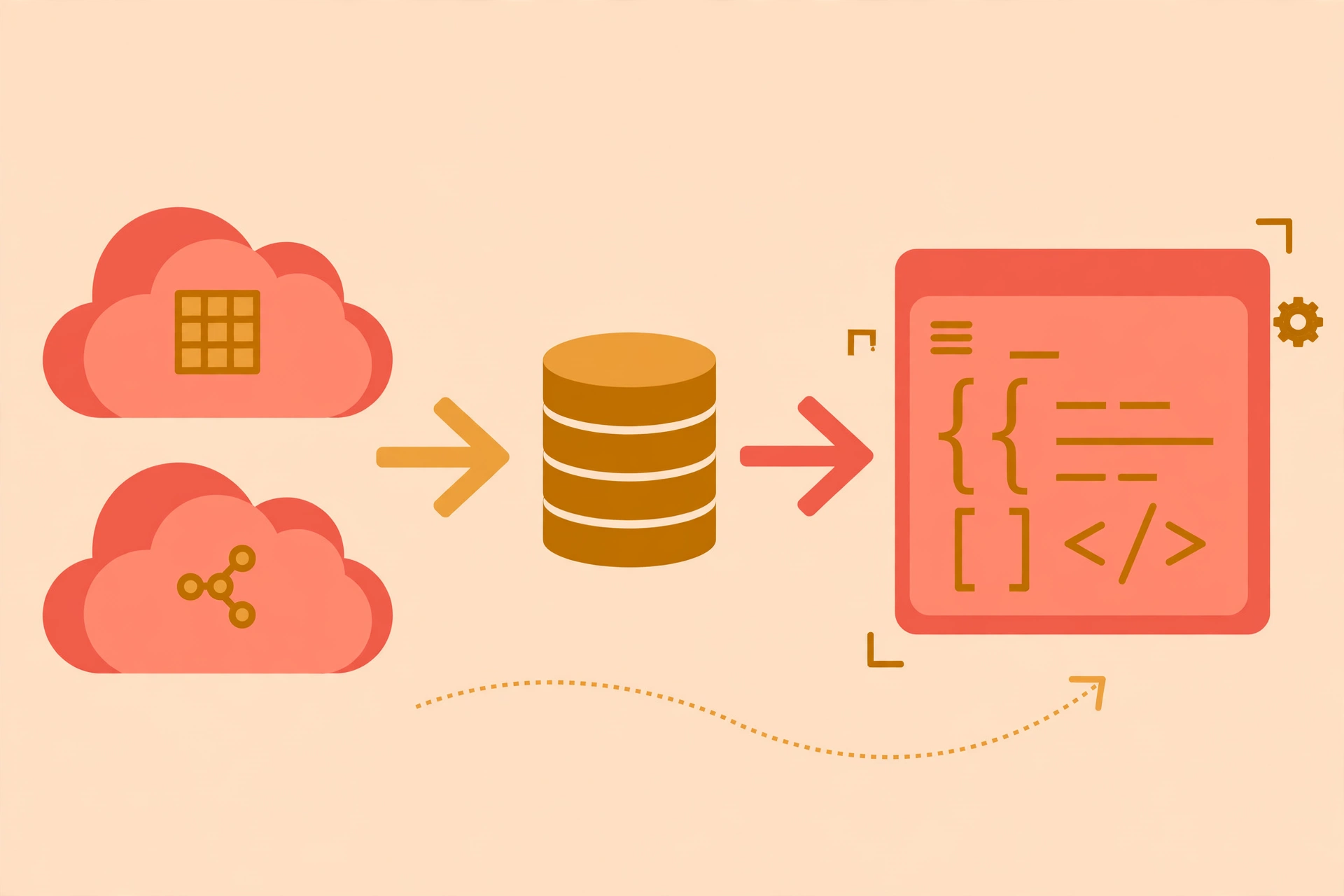
Generic roundups rank diagram tools on how fast they generate a picture. We ranked on what happens after the picture exists: does the export stay editable (Napkin’s PPTX), does the diagram live where the team works (Eraser’s GitHub and Confluence integrations, Mermaid’s git-native text), and does the tool match the diagram type you actually make? That is why Eraser and Mermaid top the list for technical teams, why Napkin beats Whimsical for docs and decks, and why Miro — excellent whiteboard, mediocre diagrammer — closes it out.
Pricing was verified against vendor pages and current third-party pricing data in October 2026. Two honest caveats: Eraser’s own pages conflict on the free AI-diagram allowance (the pricing table says 3, the FAQ says up to 5) — confirm the in-product limit before planning around the free tier. Whimsical’s pricing and billing pages show different Pro figures ($10 vs $12/editor/month) — verify at checkout.
One operator’s opinion, stated plainly: judge an AI diagram tool by its exports, not its generation. The generated diagram will be edited, embedded in documentation, and handed to a developer who will redraw half of it. Plain-text formats (Eraser, Mermaid) survive that handoff best because the diagram lives in version control. If your diagrams live in slide decks instead of repos, skip this whole category and look at our Gamma vs Beautiful.ai vs Tome roundup — that’s where presentations belong. And if the documentation the diagrams go into needs writing help, our best AI writing tools for bloggers covers the drafting side.



0 comments